> ## Documentation Index
> Fetch the complete documentation index at: https://api-docs.anzi.finance/llms.txt
> Use this file to discover all available pages before exploring further.
# Authentication
> Learn how to authenticate your API requests using API Keys
All API requests to Anzi require authentication using an API Key. This guide explains how to generate, use, and manage your API keys securely.
Keep your API keys secure and never share them publicly.
## How create an API Key
In Anzi you can create API keys in two ways:
1. **Through the API**: Use the [Create API Key](/api-reference/users/create-api-key) endpoint with your credentials
2. **Through the Interface**: Use the visual interface to create keys step-by-step (see the guide below)
## Creating an API Key Through the Interface
### Step 1: Access API Keys Menu
In the Anzi interface, locate the API Keys option in the right-hand menu. This will give you access to manage all your API keys.
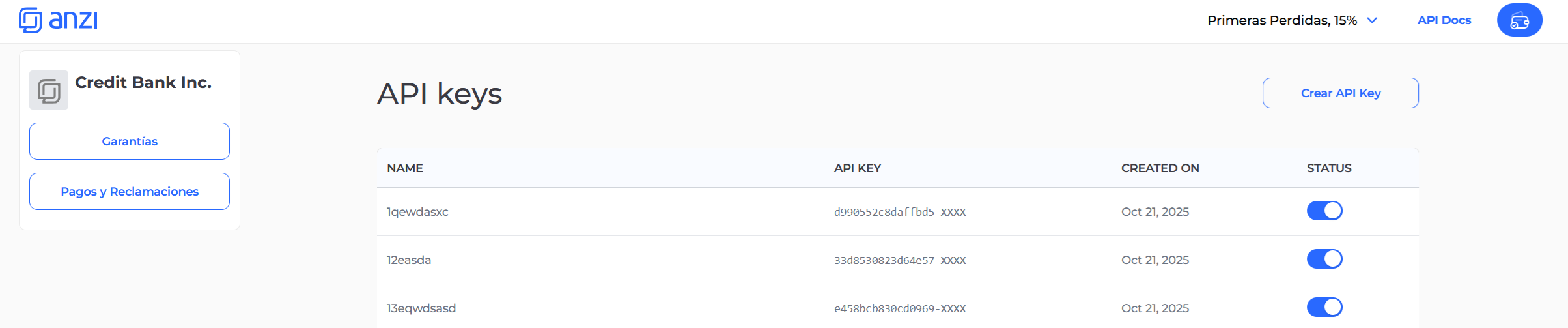
 ### Step 2: Click Create Button
From the API Keys view, click the "Create" button to open the API Key creation modal. This will launch a two-step process.
### Step 2: Click Create Button
From the API Keys view, click the "Create" button to open the API Key creation modal. This will launch a two-step process.
 ### Step 3: Enter API Key Details
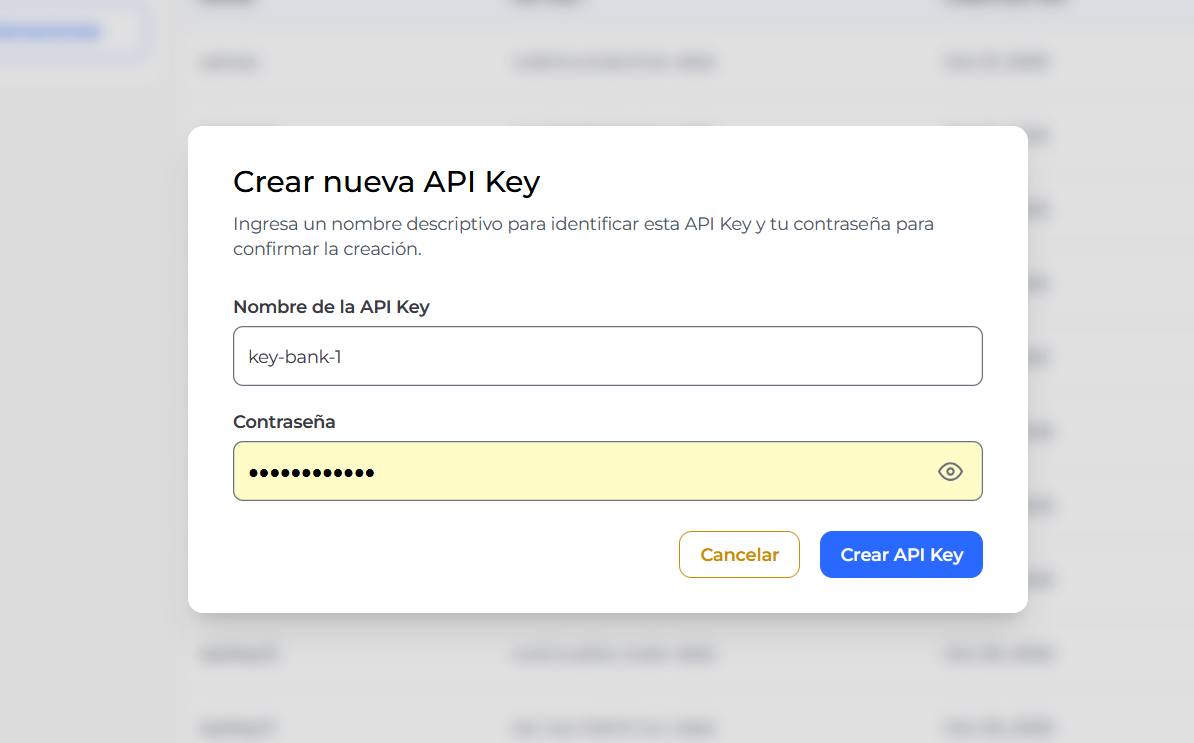
In the first step of the modal, you need to provide:
* **Name**: An identifier for your API key
* **Password**: Your account password for security verification
### Step 3: Enter API Key Details
In the first step of the modal, you need to provide:
* **Name**: An identifier for your API key
* **Password**: Your account password for security verification
 ### Step 4: Copy Your API Key
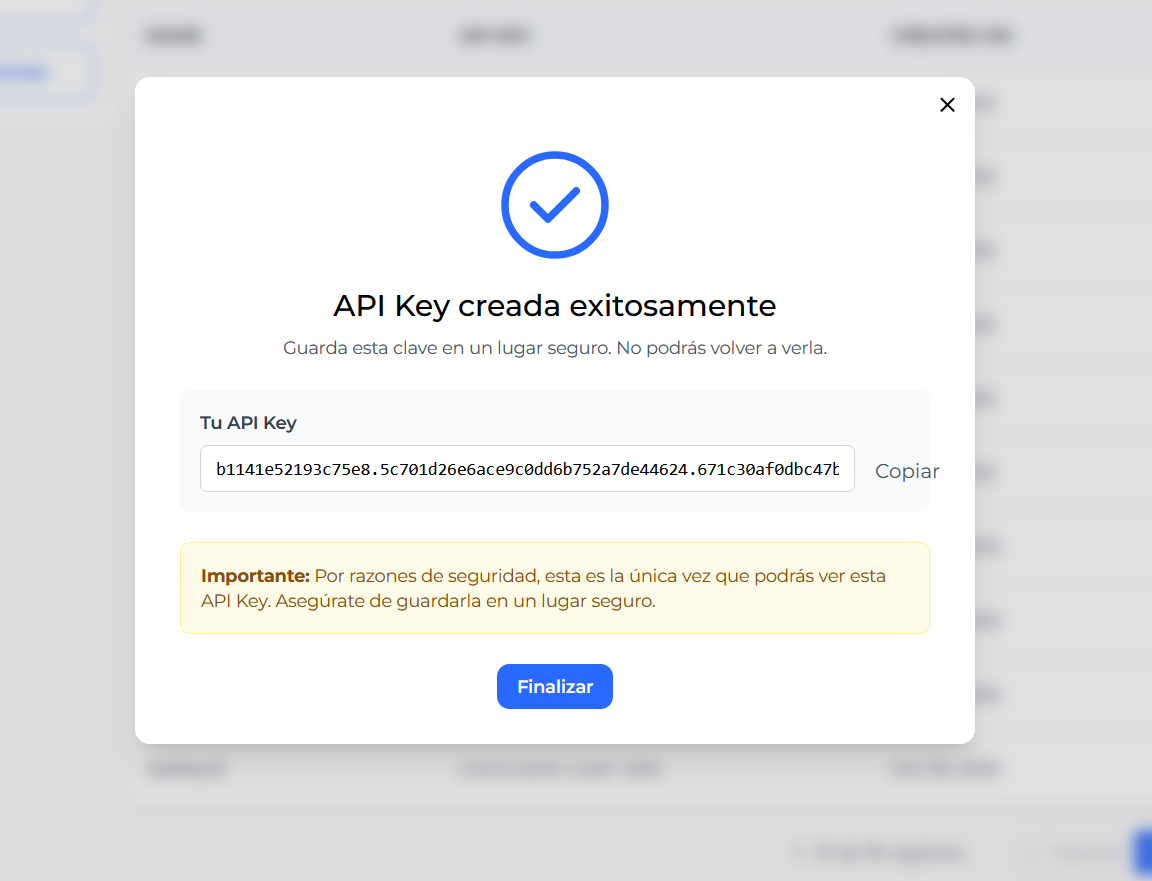
After submitting, the second step will display your newly created API key.
For security reasons, this is the **only time** you'll be able to see and copy
the complete API key. Make sure to copy it to a secure location before closing
this window.
From this screen, you can copy the API key to your clipboard using the copy button.
### Step 4: Copy Your API Key
After submitting, the second step will display your newly created API key.
For security reasons, this is the **only time** you'll be able to see and copy
the complete API key. Make sure to copy it to a secure location before closing
this window.
From this screen, you can copy the API key to your clipboard using the copy button.
 ## Managing Your API Keys
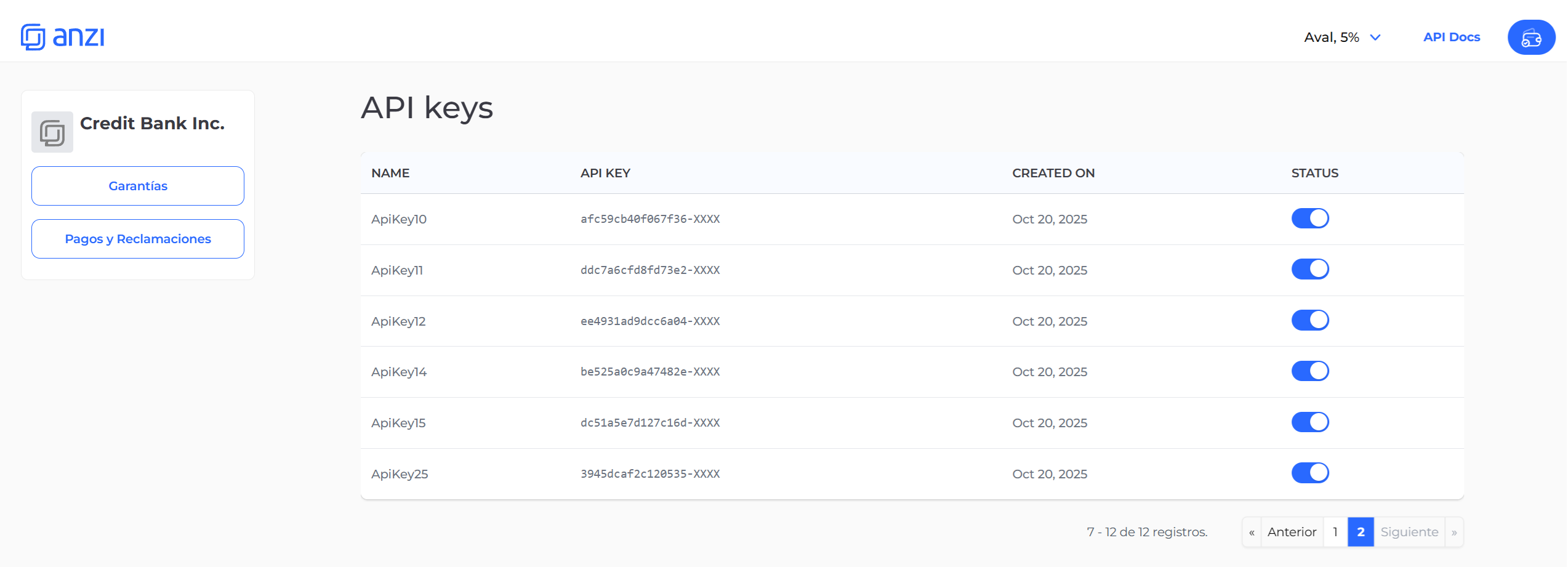
Once you've created your API keys, you can manage them from the API Keys list view. You'll see all your API keys with the following information:
* **Name**: The identifier for your API key
* **API Key**: The actual key value (partially masked for security)
* **Created On**: When the key was created
* **Status**: Toggle to enable or disable the key
From this interface, you can:
* Enable or disable keys
* View all active keys for your organization
## Managing Your API Keys
Once you've created your API keys, you can manage them from the API Keys list view. You'll see all your API keys with the following information:
* **Name**: The identifier for your API key
* **API Key**: The actual key value (partially masked for security)
* **Created On**: When the key was created
* **Status**: Toggle to enable or disable the key
From this interface, you can:
* Enable or disable keys
* View all active keys for your organization